
The same browser flow on both phones
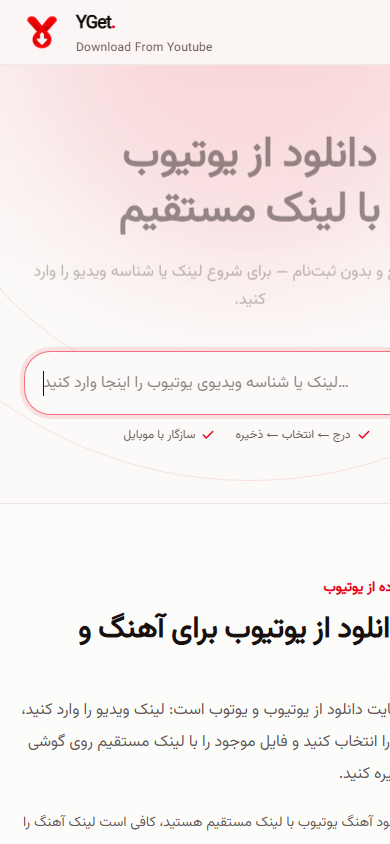
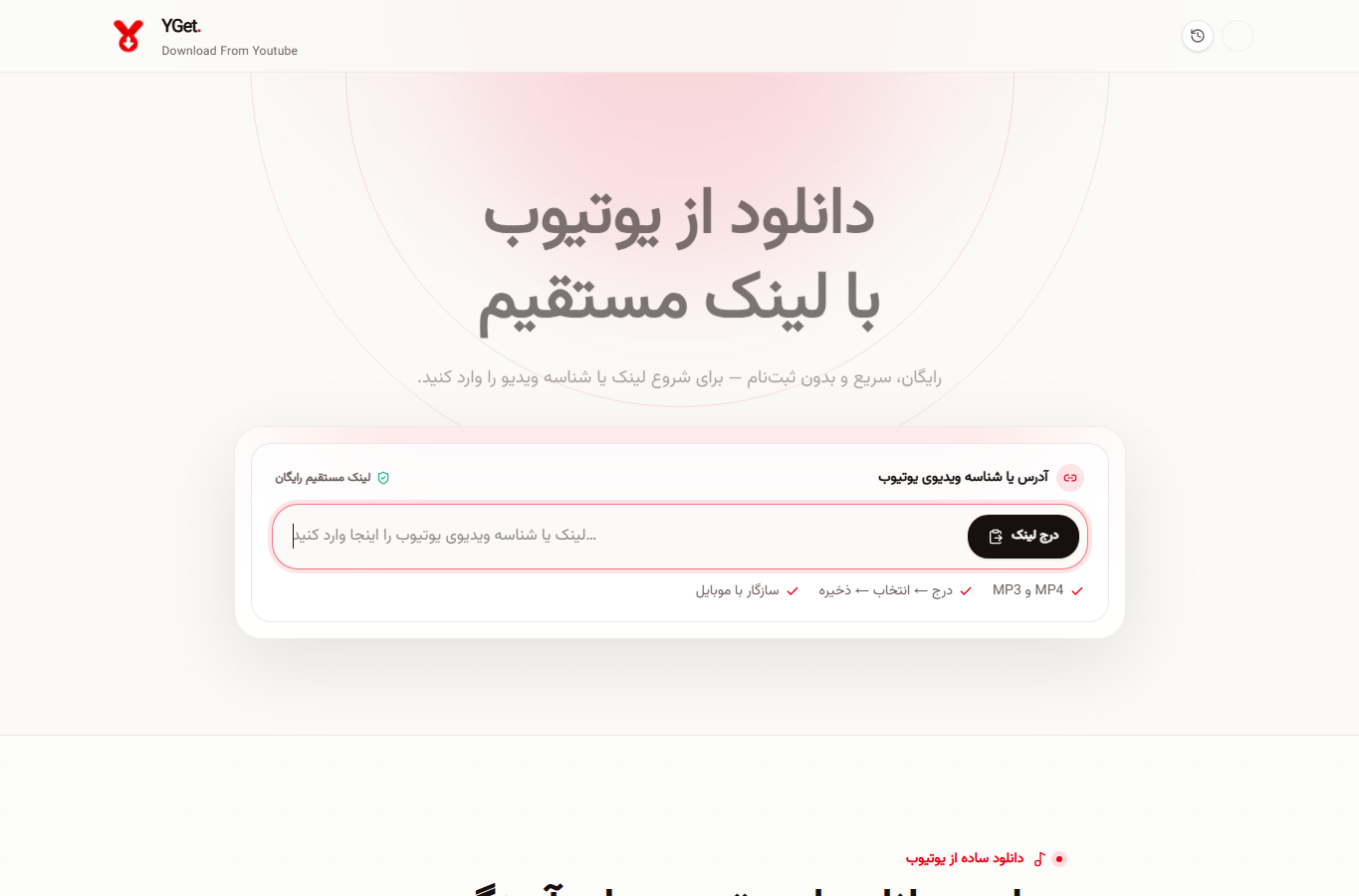
Android and iPhone users can follow the same browser workflow: copy a YouTube link, open YGet in the phone browser, paste it, and wait for the available results. The page is designed to start with the link field, so no app installation or account is required for the basic flow.
Where the file goes
On Android, the downloaded file normally appears in the browser’s Downloads area or the Files app. On iPhone, use the browser download control and then check Files > Downloads. If you need the video inside another app, use that app’s share or move action after the file has finished downloading.
Pick a phone-friendly format
Choose a format your phone supports before starting. MP4 is a practical default for video, while M4A or MP3 suits audio when the player or editing app supports it. Keep the original link and confirm that you have permission to save the content.
Tested steps
- In YouTube, tap Share and copy the complete video link.
- Open yget.ir in Safari or Chrome, paste the link, and wait for the result list.
- Choose MP4 for video or an available audio format, start the download, and find it in Downloads/Files.